Converting PDF files into editable Excel spreadsheets is a common need for businesses, students, accountants, and data analysts. PDFs are excellent for sharing information, but when the data inside needs calculations, sorting, or editing, Excel is the better format. The challenge is finding a fast, accurate, and secure way to convert PDF to Excel without breaking tables or losing formatting.
In this detailed guide, you’ll learn the best way to convert PDF to Excel using FileToConvert, why it’s more efficient than manual methods, and how to get clean, editable Excel files in just a few clicks.
Why Convert PDF to Excel?
PDFs are designed to lock content in place. That’s great for viewing but frustrating when you need to work with numbers or structured data. Converting PDF to Excel allows you to:
- Edit rows and columns easily
- Perform calculations and formulas
- Sort, filter, and analyze data
- Reuse financial reports and invoices
- Save time compared to retyping data
Whether you’re handling bank statements, reports, price lists, or tables, Excel gives you flexibility that PDFs simply can’t.
Common Problems with PDF to Excel Conversion
Not all converters are created equal. Many tools struggle with:
- Broken table structures
- Misaligned rows and columns
- Missing numbers or text
- Poor handling of scanned PDFs
- Watermarks or file size limits
That’s why choosing the right PDF to Excel converter matters. FileToConvert is designed to solve these exact issues.
Why FileToConvert Is the Best Way to Convert PDF to Excel
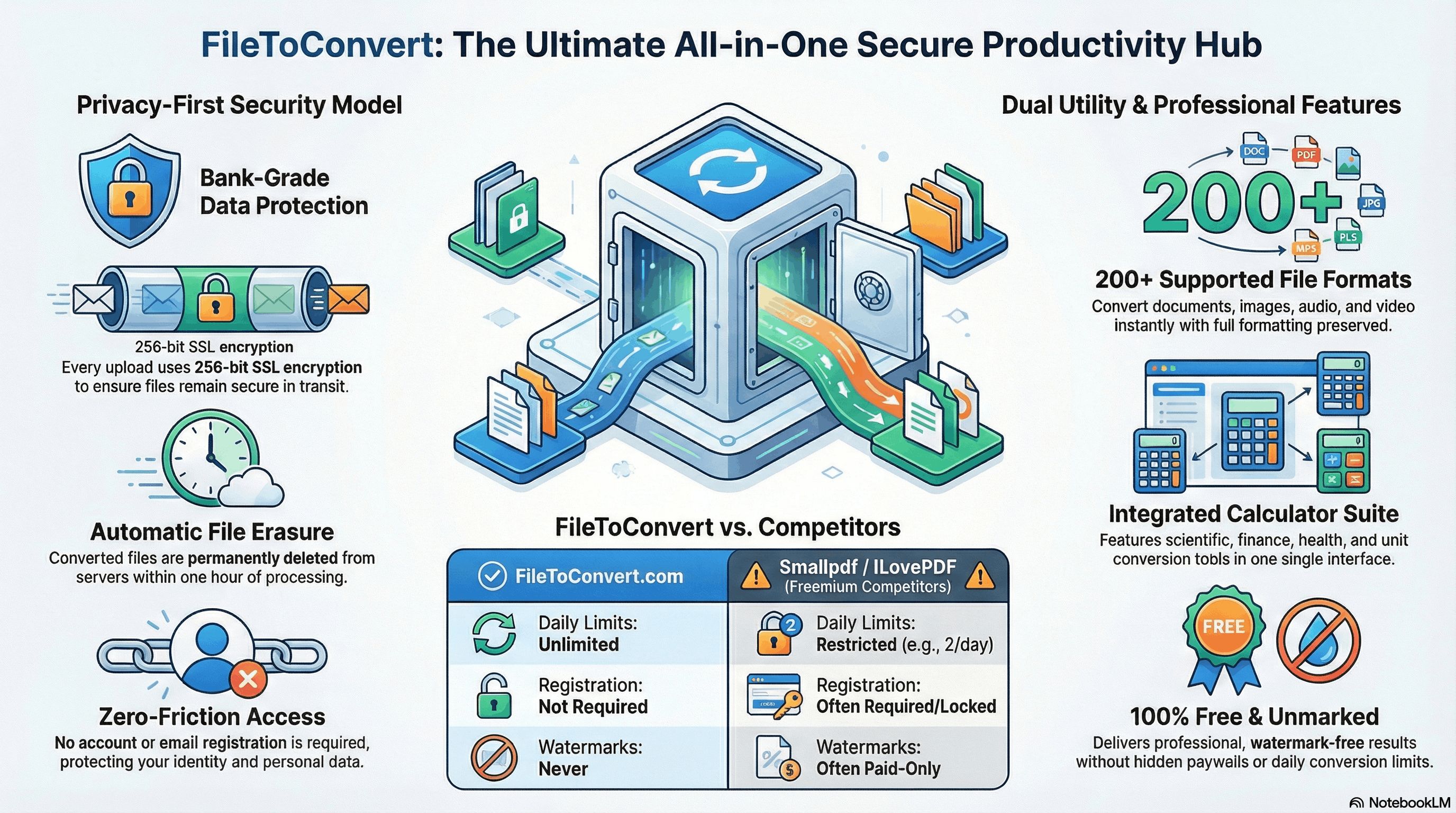
FileToConvert offers a simple, browser-based solution that focuses on accuracy, speed, and ease of use. Here’s what makes it stand out:
1. High Conversion Accuracy
FileToConvert intelligently detects tables, rows, and columns, ensuring your Excel file matches the original PDF layout as closely as possible. This means less cleanup work after conversion.
2. Supports Complex Tables
Even PDFs with multiple tables, merged cells, and structured data convert smoothly into Excel spreadsheets.
3. Works Directly in Your Browser
No software installation required. You can convert PDF to Excel online from any device—Windows, macOS, Linux, or mobile.
4. Fast and Simple Process
The entire conversion takes seconds, even for large PDF files.
5. Secure File Handling
Your files are processed securely, and privacy is respected. This is especially important for financial or business documents.
Step-by-Step: How to Convert PDF to Excel Using FileToConvert
Follow these simple steps to get your Excel file:
Step 1: Open the PDF to Excel Converter
Go to FileToConvert and choose the PDF to Excel conversion tool.
Step 2: Upload Your PDF File
Click the upload button or drag and drop your PDF into the converter.
Step 3: Start the Conversion
Once uploaded, FileToConvert automatically processes the file and converts it into Excel format (.xlsx).
Step 4: Download the Excel File
After conversion, download your Excel file instantly and start editing.
That’s it—no technical skills required.
PDF to Excel for Scanned Documents
Many PDFs are scanned images rather than text-based files. FileToConvert uses smart text recognition to extract data from scanned PDFs and convert it into usable Excel spreadsheets.
This is especially helpful for:
- Old financial records
- Paper invoices
- Printed reports
- Scanned bank statements
The result is an Excel file where you can edit, calculate, and analyze data easily.
Manual vs Online PDF to Excel Conversion
Manual Copy-Paste Method
- Extremely time-consuming
- High risk of errors
- Formatting breaks easily
- Not suitable for large files
Online Conversion with FileToConvert
- Automated and fast
- Preserves table structure
- Handles large and complex PDFs
- No manual effort required
Clearly, using FileToConvert is the smarter and more efficient option.
Who Should Use PDF to Excel Conversion?
PDF to Excel conversion is useful for:
- Accountants and finance teams
- Business owners
- Data analysts
- Students and researchers
- Office professionals
If your work involves numbers, tables, or structured data, converting PDF to Excel can save hours of effort.
Tips for Best PDF to Excel Results
To get the most accurate Excel output:
- Use high-quality PDFs when possible
- Ensure scanned PDFs are clear and readable
- Check the Excel file for merged cells
- Rename headers if needed for formulas
Even with advanced conversion, a quick review ensures perfect results.
SEO Advantage: Why PDF to Excel Tools Matter
Search demand for PDF to Excel converters is consistently high. Users want fast, free, and accurate tools. FileToConvert meets this demand by offering a clean interface and reliable conversions, making it a strong choice for both casual and professional users.
Final Thoughts
The best way to convert PDF to Excel is by using a tool that balances accuracy, speed, and simplicity. FileToConvert does exactly that. With no software installation, high-quality conversions, and secure processing, it’s an ideal solution for anyone who needs editable Excel files from PDFs.
Instead of wasting time with manual copy-paste or unreliable tools, choose FileToConvert and turn your PDFs into fully functional Excel spreadsheets in seconds.
If you regularly work with PDF data, FileToConvert is a tool worth bookmarking.
25 Practical Use Cases for Converting PDF to Excel
Here are 25 real-world use cases where converting PDF to Excel using FileToConvert saves time, reduces errors, and improves productivity:
- Bank Statements Analysis – Convert PDF bank statements into Excel to track expenses and income.
- Financial Reporting – Turn PDF financial reports into editable Excel sheets for forecasting.
- Invoice Management – Extract invoice data from PDFs for accounting and bookkeeping.
- Expense Tracking – Convert PDF receipts into Excel for expense audits.
- Tax Preparation – Organize PDF tax documents into Excel for calculations.
- Sales Reports – Convert PDF sales summaries into Excel for performance analysis.
- Inventory Lists – Edit and update inventory data locked inside PDFs.
- Payroll Processing – Extract employee salary tables from PDF to Excel.
- Price Lists – Update pricing data from supplier PDFs easily.
- Business Proposals – Reuse tables from PDF proposals in Excel models.
- Market Research Data – Analyze PDF survey results in Excel.
- Academic Research – Convert PDF research tables into Excel for analysis.
- Student Records – Manage grades and attendance from PDF files.
- Government Forms – Extract structured data from official PDF documents.
- Logistics Reports – Convert shipment and delivery PDFs into Excel trackers.
- Project Management – Import PDF project data into Excel dashboards.
- Audit Documentation – Prepare audit files by converting PDFs to Excel.
- E‑commerce Reports – Analyze order and revenue PDFs in Excel.
- Real Estate Listings – Extract property data from PDF listings.
- Healthcare Records (Non‑Sensitive) – Convert PDF reports into Excel summaries.
- Manufacturing Data – Analyze production reports stored as PDFs.
- HR Documentation – Manage employee records and evaluations.
- Vendor Comparisons – Compare supplier data extracted from PDFs.
- Historical Data Digitization – Convert old scanned PDFs into usable Excel files.
- Data Migration – Move legacy PDF data into modern Excel-based systems.
These use cases show why PDF to Excel conversion is essential across industries—and why FileToConvert is the best tool for the job.